
TrackiPro Application Guide
Find instructions for adding and managing trackers, sharing locations, reviewing history, creating Geo-fences, controlling notifications and managing your account.
Add device
Open Devices
Use the Devices icon in the application's bottom navigation.
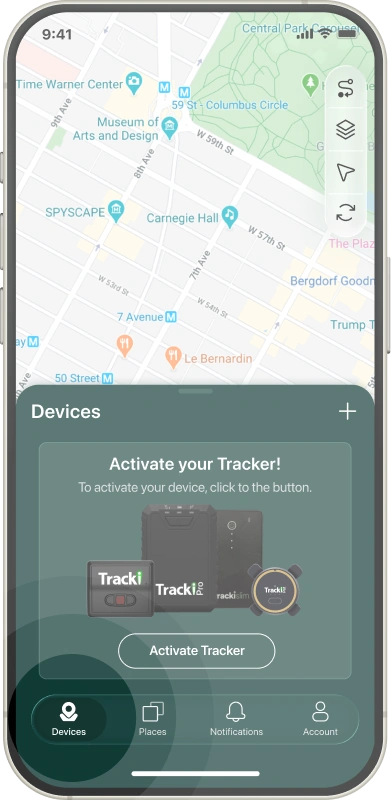
Add a device
On the Devices screen, use the + icon positioned beside the Devices heading.
Select your tracker
Choose the appropriate tracker from the device list.
Power on your device
- Take the tracker outdoors so it has open-sky access.
- Press and hold the ON/OFF button for at least 3 seconds. The green indicator should begin flashing.
- Leave the tracker outside for at least 15 minutes so it can establish its initial connection.
Activate tracker
Scan the QR code on the tracker, or activate it manually using the Tracker ID and the requested final four IMEI digits.
Choose plan
Select the subscription plan that should be used for the current device.
Coupon code
If you have an eligible coupon code, enter it during this stage of activation.
Name your device
Give the tracker a name that makes it easy to identify what is being tracked.
Choose usage type
Choose how and by whom this tracker will be used. The selection can be changed later from device settings.
Choose type
Select an existing type from the available list or create your own.
Add a photo
Add your own image for the device or keep a supplied device icon.
Ready for tracking
After completing setup, the new device is ready to be tracked.
Notifications
The Notifications screen lets you choose which tracker events you want to receive.
Open notification settings
Open Devices and select the tracker whose notifications you want to enable or disable.
Open Notifications
Select the Notifications button for the chosen tracker.
Adjust notification toggles
Turn individual notification options on or off according to your preferences.
Share notifications
Where supported, use the share button next to an alert to send that notification to selected contacts.
Notification triggers
- Start moving Generated when the tracker begins moving.
- Low battery Generated when battery level falls to 20%.
- Zone entry Generated when the device enters a Geo-fence.
- Zone exit Generated when the device leaves a Geo-fence.
- Beep sound Controls the device beeper where supported.
- SOS key pressed Generated when the tracker's SOS button is pressed.
- Power on/off Generated when the device powers on or off.
- Device proximity Generated when the supported device is detected nearby.
- Right key message Generated when the right button is pressed.
- Left key message Generated when the left button is pressed.
Share location
A tracker's location can be shared by link with people you trust.
Select the tracker
Open Devices and choose the tracker whose location you want to share.
Tap Share
Use the Share button on the selected tracker.
Select sharing period
Choose how long the shared location should remain accessible.
Copy or send the link
Copy the tracking link or share it through a messenger or email application.
To end sharing early, use the Deactivate option.
Directions
Directions can open the tracker's position in a compatible mapping application.
Select the tracker
Open Devices and choose the tracker you want directions to.
Tap Directions
Select a map application
Choose the application you want to use to navigate.
History
Device history is shown on the map as a path representing previous tracker locations.
Select the tracker
Choose the tracker whose history you want to review.
Tap History
Select history parameters
Choose the period or parameters you want to inspect.
View history
The available tracker history is displayed on the map.
Geo-fences
A Geo-fence is a virtual boundary used to monitor when a tracker enters or leaves a selected area.
Select a tracker
Tap Geo-fences
Add a Geo-fence
Select the + control to create a new fence.
Select the location
Search for an address or position the location on the map.
Adjust the perimeter
Adjust the fence until the desired area is covered.
Name and assign the fence
Enter a name and select the trackers that should use the Geo-fence.
Modes & Statuses
Tracking mode can be adjusted from the device information screen.
Mode types
- Sleeping mode Uses configurable sleep behaviour to help optimize battery life.
- No movement mode Reporting is reduced while the tracker remains stationary.
Select the tracker
Open current status
Select preferred modes
View status information
Types of statuses
- Online mode Locations are sent according to your tracking settings.
- Battery saver mode Location updates and notifications are reduced while stationary.
- Live tracking mode Provides temporary high-frequency location reporting.
- Sleeping mode Reporting stays paused until the configured wake time.
- Flight mode Tracker communication is suspended during air travel.
- Software updates Location reporting may pause during a software update.
- Shut down The service has not reached the tracker for an extended period.
- Connection lost Communication with the tracker has been lost.
Flight mode
Flight mode temporarily suspends tracker communication during air travel.
Select the tracker
Open current device status
Enable Flight mode
Automatic flight mode
Set starting date and time
Manual flight mode
Specify the start and duration of the flight.
Update tracker location
To request the tracker's latest available position, open Devices and select the Update location control.
About
Places are saved geographic areas used to monitor when a tracker enters or exits a selected location.
Edit
Select a Place
Edit Place settings
Change its name, assigned trackers or fence perimeter.
Save
Create
Create a new Place
Select a location
Adjust the perimeter
Name and assign the Place
Delete
Use the delete action for the Place you want to remove.
About
The Notifications tab displays alerts received from the devices associated with your account.
Filter
Filtering lets you control which notification types appear in the list.
Open Filter
Select notification types
About
The Account tab contains the application's general account and preference settings.
Available settings
- Profile data
- Notifications
- Modes
- Language
- Contacts
- Subscription
- Metric System
- Tutorials
- Contact support
- About
Notifications
Account notification settings let you enable or disable notification types.
Open Notifications
Configure notification types
Subscription
The Subscription section provides an overview of tracker subscriptions connected with your account.
Open Subscription
Select a device
View subscription details
Try another search such as “history”, “Geo-fence”, “notifications” or “subscription”.